The leaderboard
When a question ends — either because someone answered correctly (fastest-finger), everyone gave their answer (voting), or the countdown reached zero (time-out) — the leaderboard score screen can be shown by pressing the ‘S’ key. Initially, the leaderboard shows the top 20 teams (or fewer, if there are fewer teams/players); however, you can scroll up and down using the arrow keys on the keyboard or the up/down buttons on the quizmaster remote control.
You can also open this screen with Shift-S, in which case the leaderboard initially shows the lowest ranks, building more suspense. When rounds are present in a quiz (End of Round slides are present), pressing Ctrl-S shows the scores of the players in the current round. Shift-Ctrl-S shows the round scores in reverse order (lowest to highest). Pressing Ctrl-E shows the winner of each round.
Pressing ‘S’ again hides the leaderboard.
Score control screens
The main leaderboard can only be used to display information, not to change anything. In some scenarios, you may also need to update scores — for example, when the audience is challenged with a test outside of QuizXpress and, once the challenge is completed, you want to register the results in QuizXpress. For that purpose, four extra screens are available, accessible through the ‘E’, ‘R’, ‘T’, and ‘W’ keys. These keys all trigger the same screen; however, the layout differs per key. (Note: a more convenient way to update the scores is by using the Teams tab in QuizXpress Director.)
The score control screens (except the ‘W’ screen) also show more information than just the scores.
The different screen layouts are:
 |
 |
|---|---|
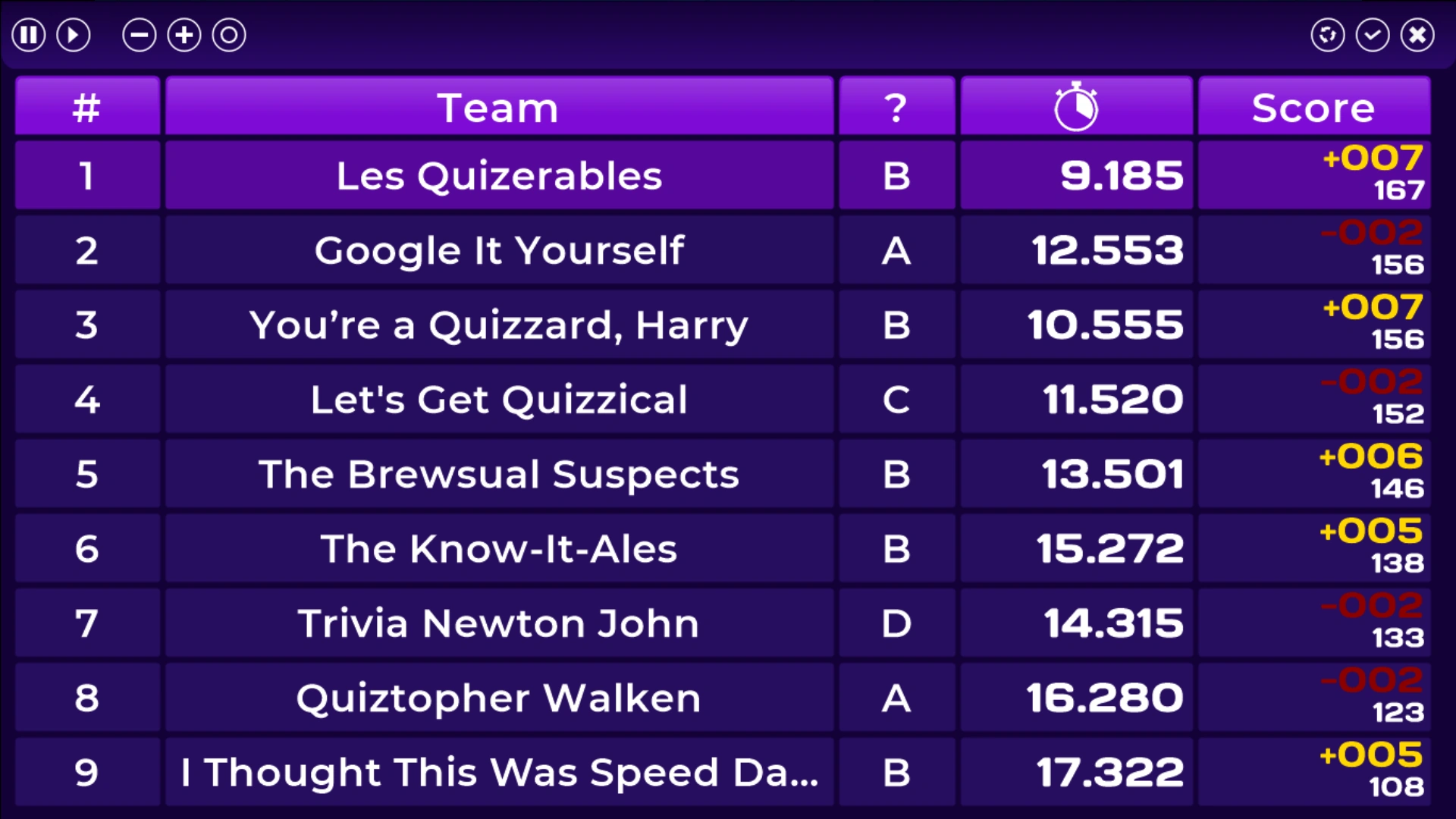
Score screen ‘T’ This screen shows the last response, the time at which the response was received, the total score, and the points for the last question. |
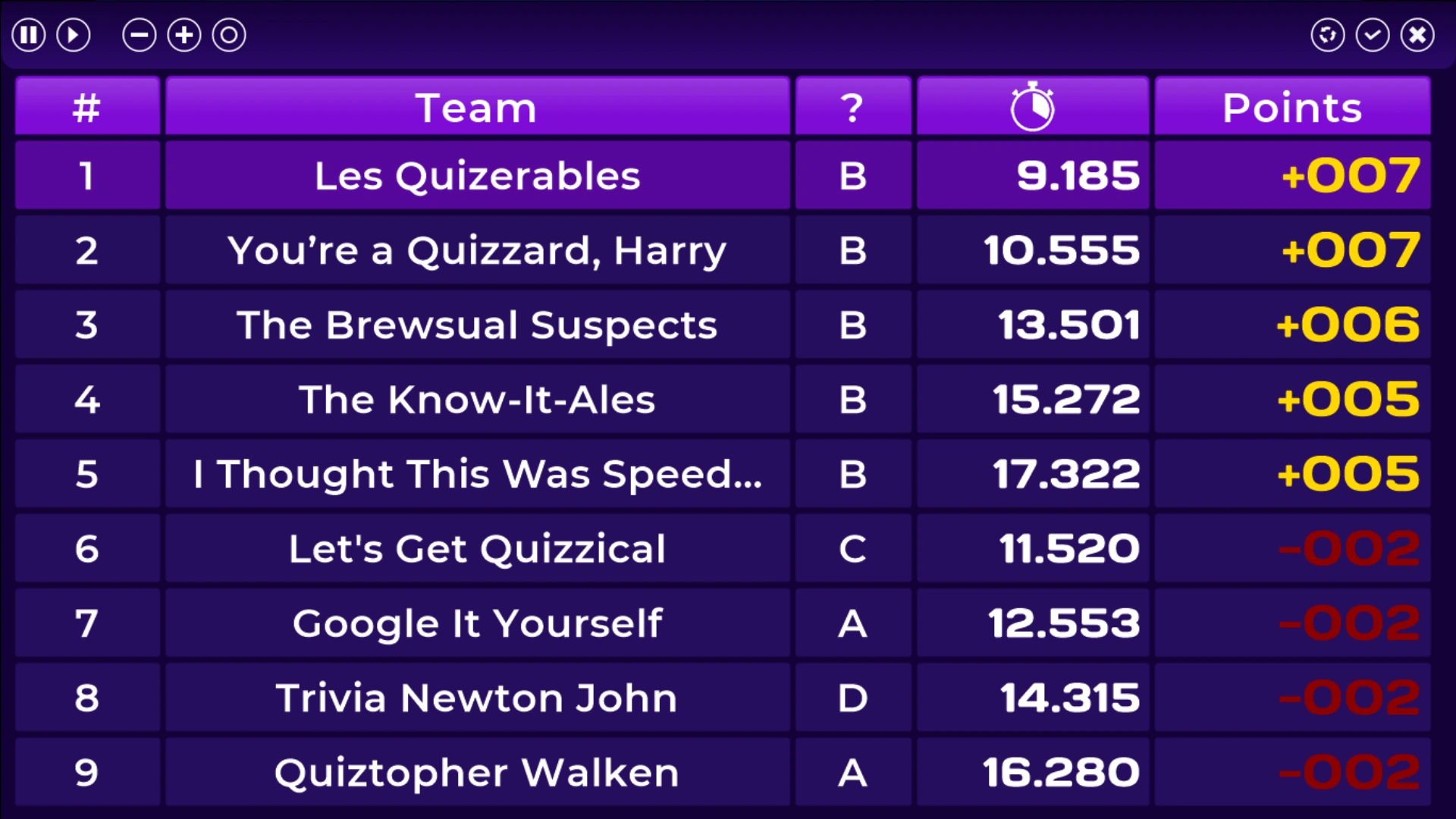
Score screen ‘R’ This screen shows the last response, the time at which the response was received, and the points for the last question. |
 |
 |
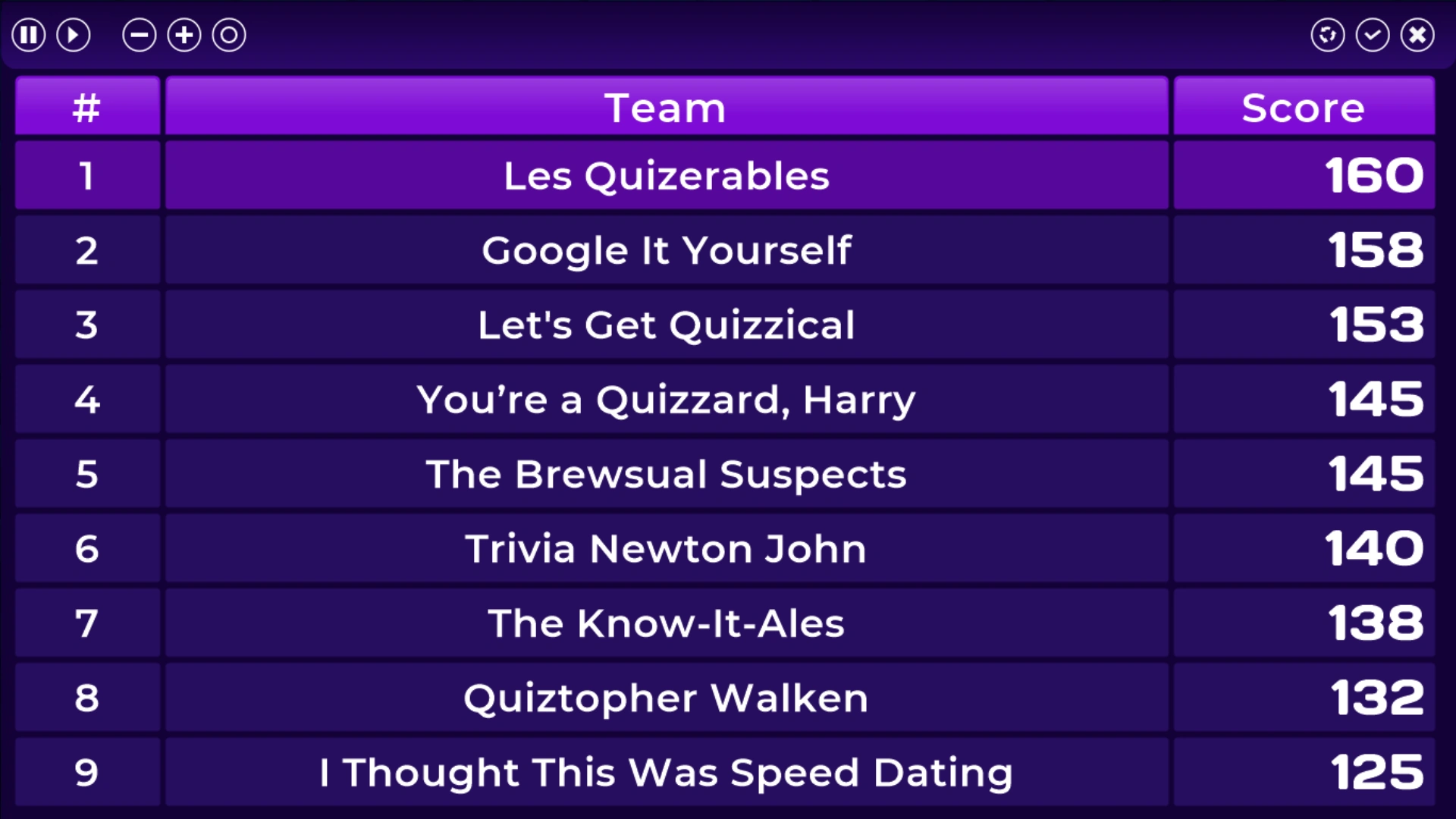
Score screen ‘E’ This screen shows only the score for each team. |
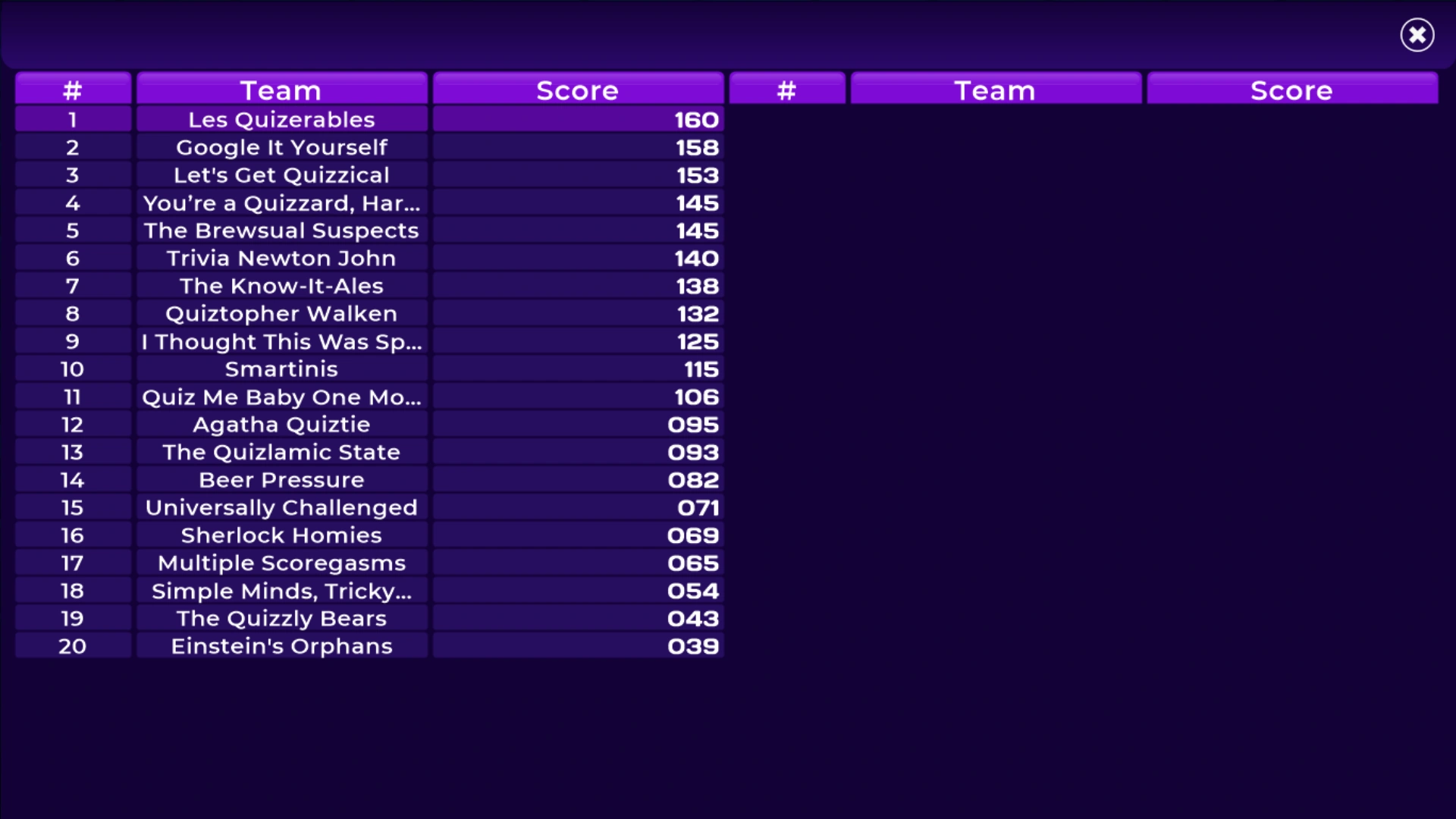
Score screen ‘W’ This screen shows the score for up to 50 teams at once (note: scores cannot be modified here). |
To scroll through the list of teams, you can:
-
Use the mouse scroll wheel.
-
Use the up/down arrow keys.
-
Use the page up/page down keys.
The toolbar at the top of the screen allows you to make changes to the selected team. The following functions are available:
 |
Disable (pause) the team/player. When a player is disabled, they can no longer answer questions |
|---|---|
 |
Resume participation of the player/team |
 |
Decrease the score by one point |
 |
Increase the score by one point |
 |
Reset all scores to 0 |
 |
Toggle auto-scrolling in the score list (useful if you have a break in your quiz show and want to continuously display the scores of all players) |
 |
Close the screen and confirm changes (equivalent to pressing the ‘Enter’ key). If you made changes to the scores, these will be applied. |
 |
Close the screen and discard changes (equivalent to pressing the ‘Escape’ key). |
Note
a more convenient way to change points and enable/disable teams is by using QuizXpress Director or the Director mobile app.