Ribbon
The QuizXpress Studio user interface is built around the concept of a ribbon. The ribbon was introduced in Microsoft Office and greatly enhances user productivity and discoverability of features. Click here for more general info on the Microsoft ribbon user interface concept.
The QuizXpress Studio ribbon is divided into several sections (Ribbon Tabs).
| File | Also referred to as the ‘backstage’ menu. Access to global and file-related functionality. |
|---|---|
| Home | General formatting and control elements |
| Insert | Add new elements such as sound and text to your quiz slide |
| Question | Configure the behavior of a question (points, type of question, etc.) |
| Design | Format your slide in different styles and layouts |
| View | Select what to view in the user interface of QuizXpress Studio |
| Quiz Show | Start the quiz show! |
| Picture | Configure pictures (shown when selecting a picture on a slide) |
| Shape | Configure picture and text shapes (shown when selecting an inserted picture or text on a slide) |
| Speech | Configure speech (shown when selecting a speech element on a slide) |
| Chart | Configure charts (shown when selecting a chart on a slide) |
| Audio | Configure an audio fragment (shown when selecting audio on a slide) |
| Video | Set the various video properties (shown when selecting a video on a slide) |
| Trivia Board | Configure a Trivia Board slide (contextual tab) |
| Trivia Ladder | Configure a Trivia Ladder slide (contextual tab) |
| Bingo | Configure the properties for a Bingo round |
| Word Game | Configure the properties for a Word Game (contextual tab) |
| Trivia Feud | Configure a Trivia Feud slide (contextual tab) |
Next to the global ribbon tabs that are always visible, there are so-called ‘contextual tabs’. Their visibility depends on the selected item in the editor. For example, when selecting a video item on the slide, the contextual tab for VIDEO appears:
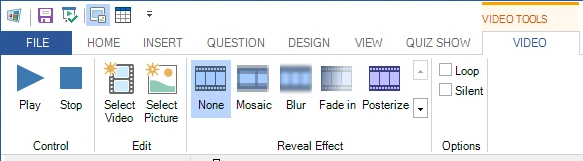
The tab will disappear as soon as something else is selected on the slide.