Testing with Virtual Keypads
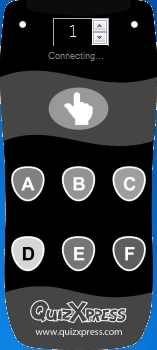
The Virtual Keypad is useful for testing your quiz without any external dependencies. It's a software keypad that runs on the same machine as your quiz. You can launch a new Virtual Keypad (VK) either from the External Tools dropdown in Studio or from the Windows Start menu, in the QuizXpress section. Once a Virtual Keypad instance is running, it starts trying to connect to QuizXpress Live. Until it succeeds, the keypad buttons are grayed out.
 |
 |
 |
|---|---|---|
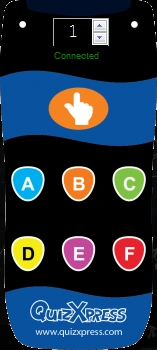
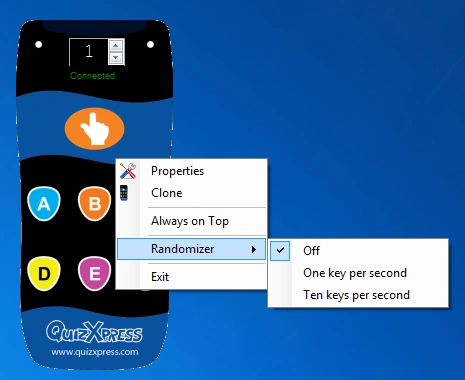
| Connecting | Connected | Virtual Keypad Context menu |
Once connected, you can change the keypad number on the fly with the spinner. To access the context menu, right-click the keypad screen. The context menu offers the following commands:
| Menu | Description |
|---|---|
| Properties | Opens the Properties dialog, where you can see the server IP address and port being used |
| Clone | Clones a new instance. The keypad ID will increment |
| Always on Top | Keeps the keypad in front of all other applications |
| Randomizer | Enables/disables a mode where the keypad sends random input for easy testing |
| Exit | Closes the Virtual Keypad |