Sound
Sound fragments can be used for questions such as “Who wrote this song?”, “What bird is singing here?”, or “What is this noise?”. To make things interesting, you can vary the speed of the sound over time by setting the ‘Speed from’ (playback speed percentage when the sound starts playing) and ‘Speed to’ (playback speed at the end of the sound fragment) properties. Likewise, you can vary the pitch of the sound.
Inserting a sound file
To add a sound fragment to a quiz slide, select the INSERT ribbon tab and click the ‘Audio’ button, then select an mp3 or wav file and select whether to link or embed the file:
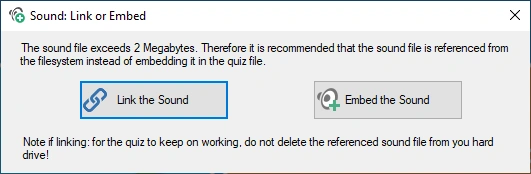
Linking results in smaller, more manageable quiz files, but you’ll have to make sure all external files remain accessible — either at their original path or in the folder where the quiz file is stored (alternatively, you can keep the files external and pack your quiz before distributing it).
Once the file is inserted, the AUDIO contextual ribbon tab becomes visible to configure the various options.

Replay
Often you’ll want to replay (part of) the music after the question has finished, synchronized with revealing the correct answer on the slide. This can be done by enabling the audio replay functionality:
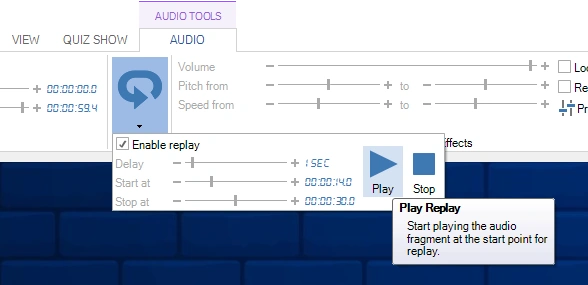
You can set an initial delay, the song’s start time, and the end time.
Spotify ™ playlist import
You can import your Spotify playlists (optionally with album art and a 30 second preview of the songs) and effortlessly create a Trivia Music quiz or a Disco Bingo game. QuizXpress does not interact with Spotify directly but supports a CSV file format produced by the Exportify website. To use this function, export your playlist to CSV using the site and import the file in QuizXpress. A form will appear for you to make some choices:
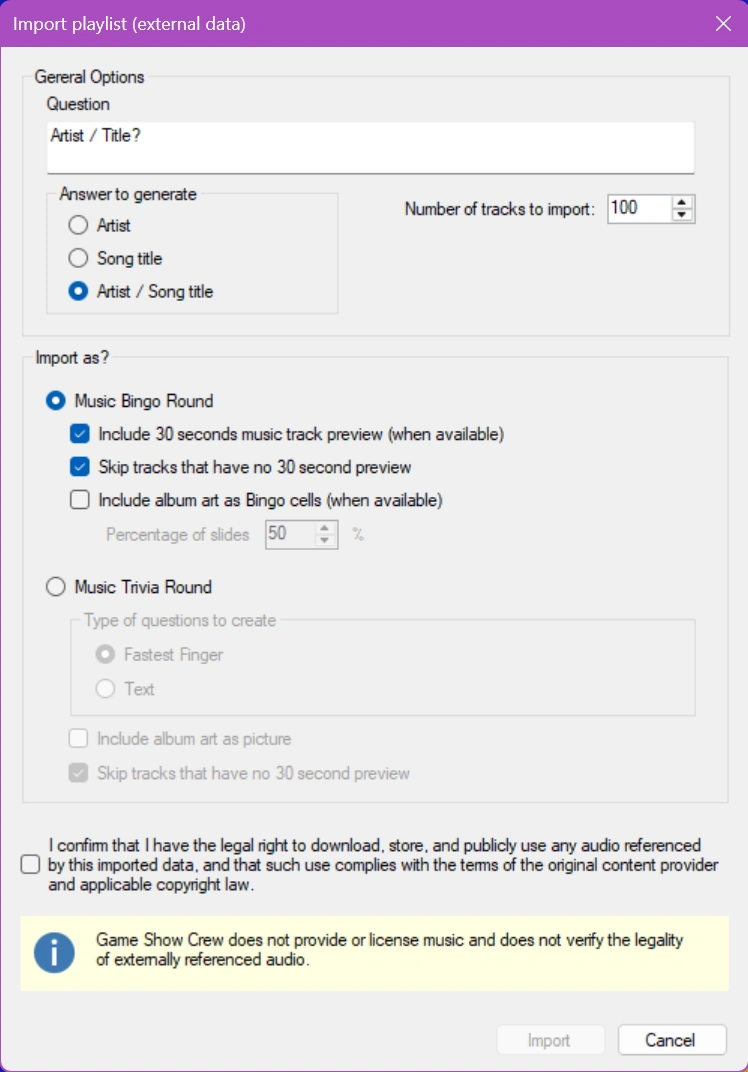
If we create a Bingo game with these options, we get a mix of cells with album art and Artist/Title text, like:
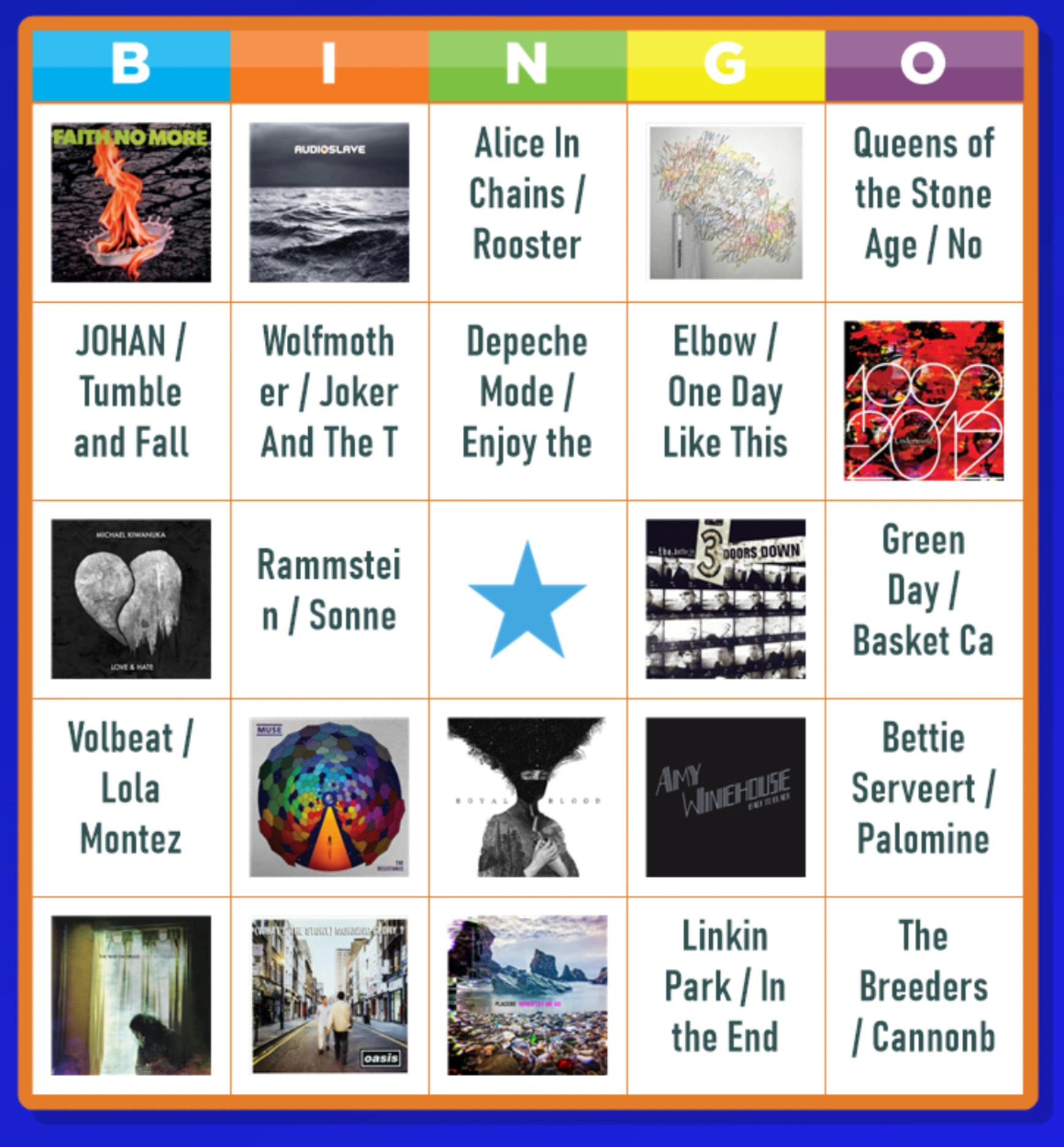
The created slides and game settings can be tweaked after the import.
Applying sound effects
There are various effects possible when playing sounds:
-
Increase sound speed – this is accomplished by giving the sound’s ‘speed percentage’ and ‘target speed percentage’ properties the same value in the Property Editor. This value must be greater than 100 to speed up the sound. To show the properties of a sound, left-click the sound icon in the design area.
-
Slow down sound speed – this is accomplished by giving both properties mentioned above a value smaller than 100. Again, give both properties the same value; you’ll see why below.
-
Slow speed to normal speed – to accomplish this, enter a value smaller than 100 for the sound’s ‘speed percentage’ property. This ensures the sound starts playing slowed down. Leave the ‘target speed percentage’ property unchanged; its default value is 100, meaning normal speed. As a result, QuizXpress will play the sound slowly at first, but as time progresses, it will reach the target speed of 100 (normal speed).
-
Fast speed to normal speed – to accomplish this, select a value greater than 100 for the ‘speed percentage’ property. Leave the ‘target speed percentage’ property unchanged.
-
Reverse – plays the sound fragment in reverse, challenging the players to recognize the song (tick the Reverse audio checkbox in the sound ribbon)
You can listen to these sound effects while creating the question that contains the sound. To listen to the sound and its effects, click the ‘Play’ button in the ribbon, or select ‘Play’ from the sound’s context menu.
If you don’t want the sound to start immediately when the question starts, use the sound’s ‘Intro Pause’ property to delay playback (this gives participants the opportunity to read the question first, or gives the quizmaster the opportunity to read the question aloud first).
Note
other sounds, such as the buzzer sounds, background music, and countdown music, can be configured in Quiz Setup.*